

Blogs
Adding/Duplicating blog items
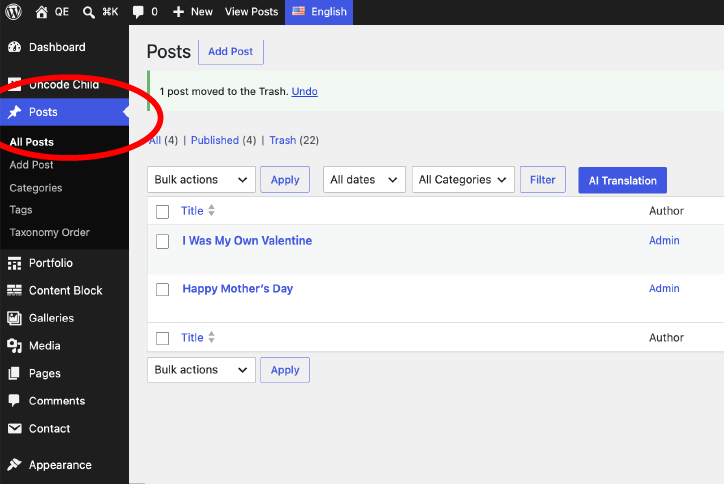
- Go to the admin dashboard, click on the posts to list the previously built posts.
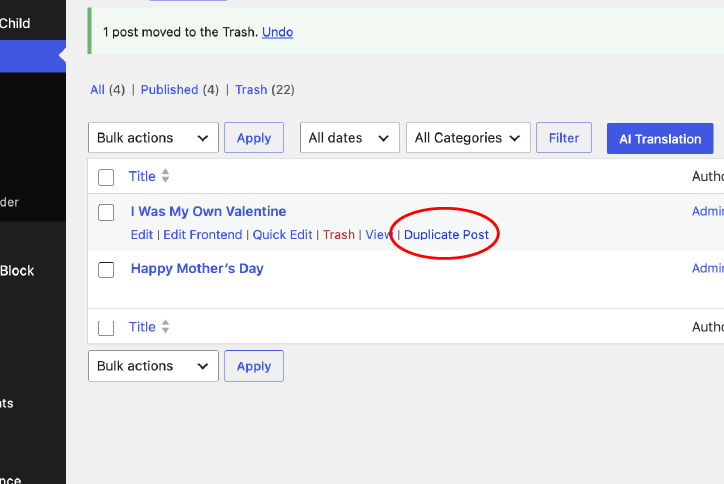
- Hover on the title of one of the posts and click on duplicate post
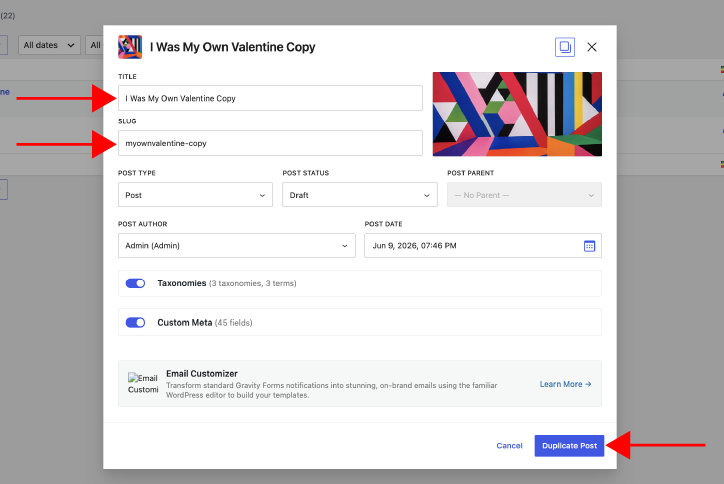
- Change the Title (for this example we shall change the blog to new sample post)
- Do not change anything else on the settings, unless you are back-posting an old post
- click on Duplicate Post
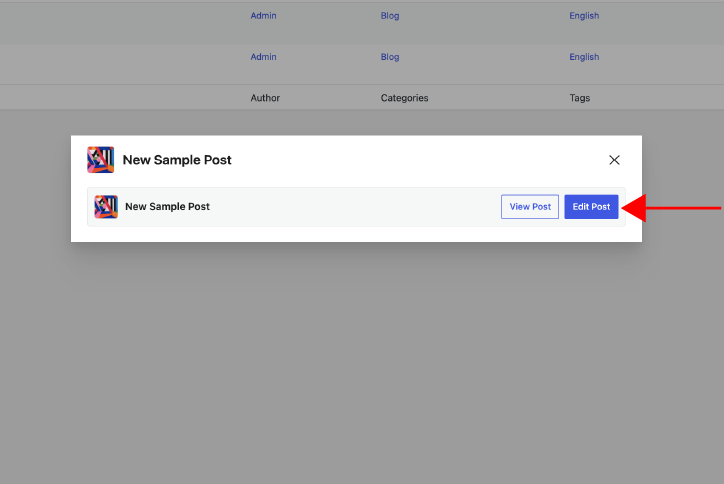
- Click on Edit post
Blogs
Editing blogs
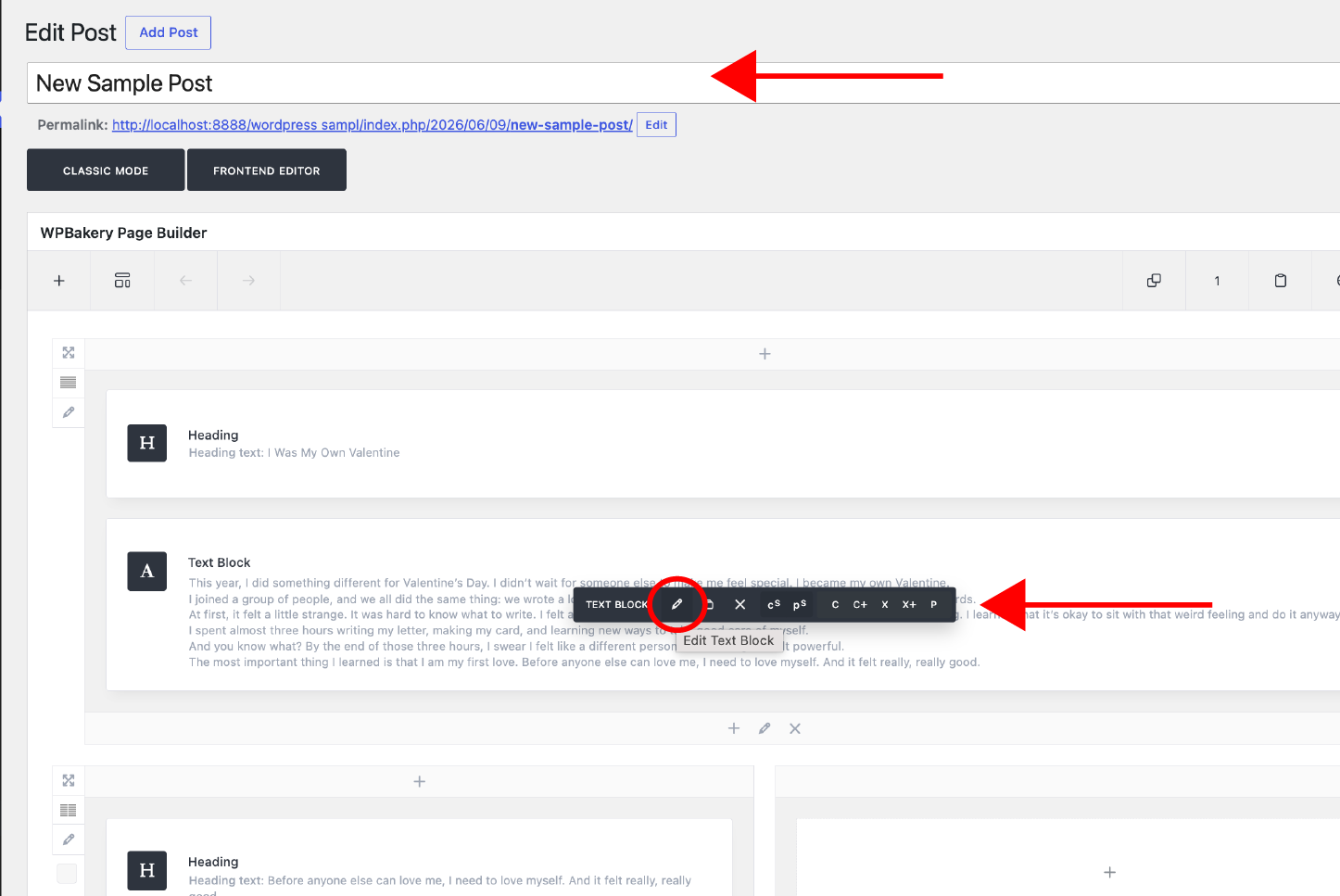
- You can change the title of the blog in the title section
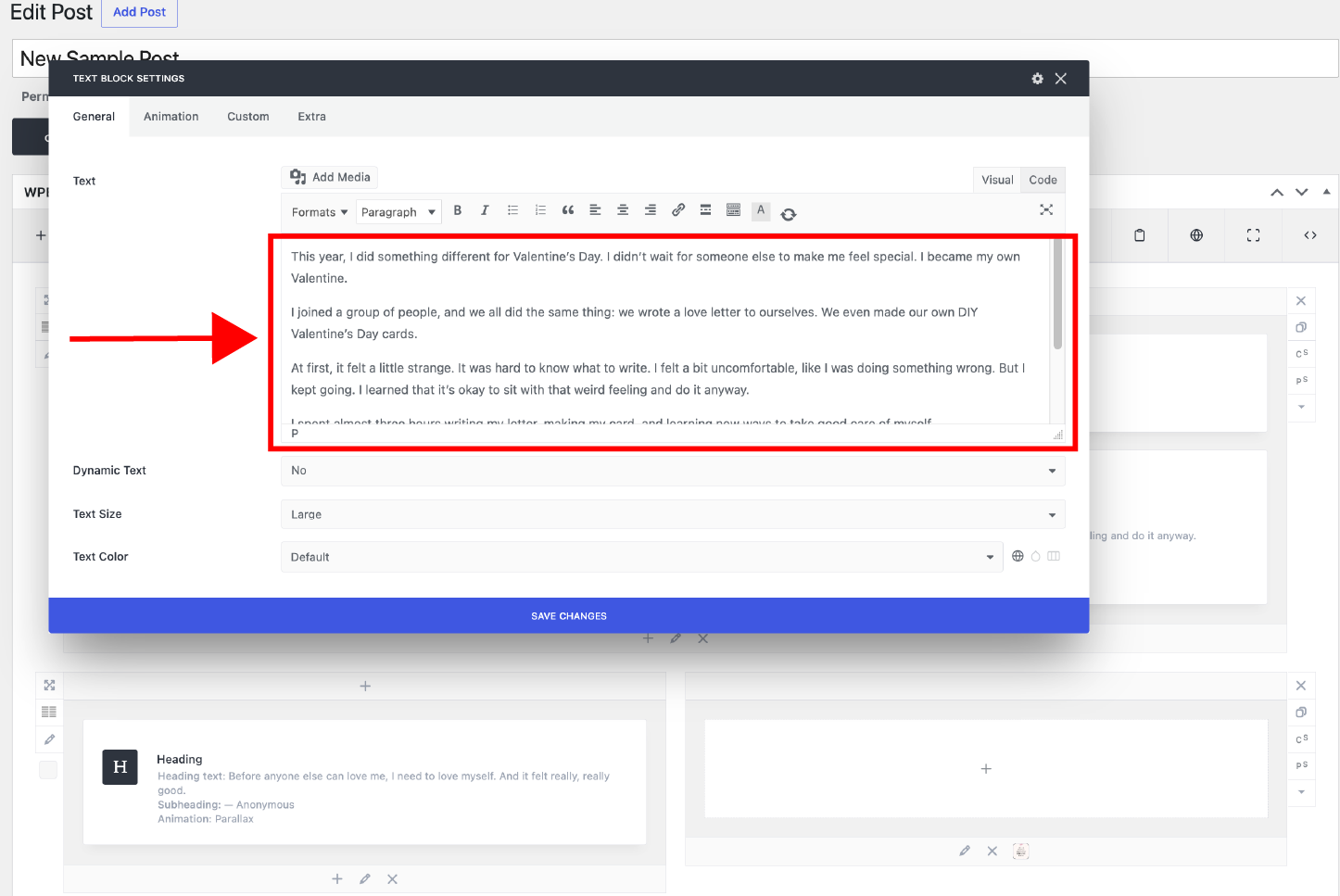
- Write or paste in the text editor shown on slide 2, you can edit the text formatting like any other text editor
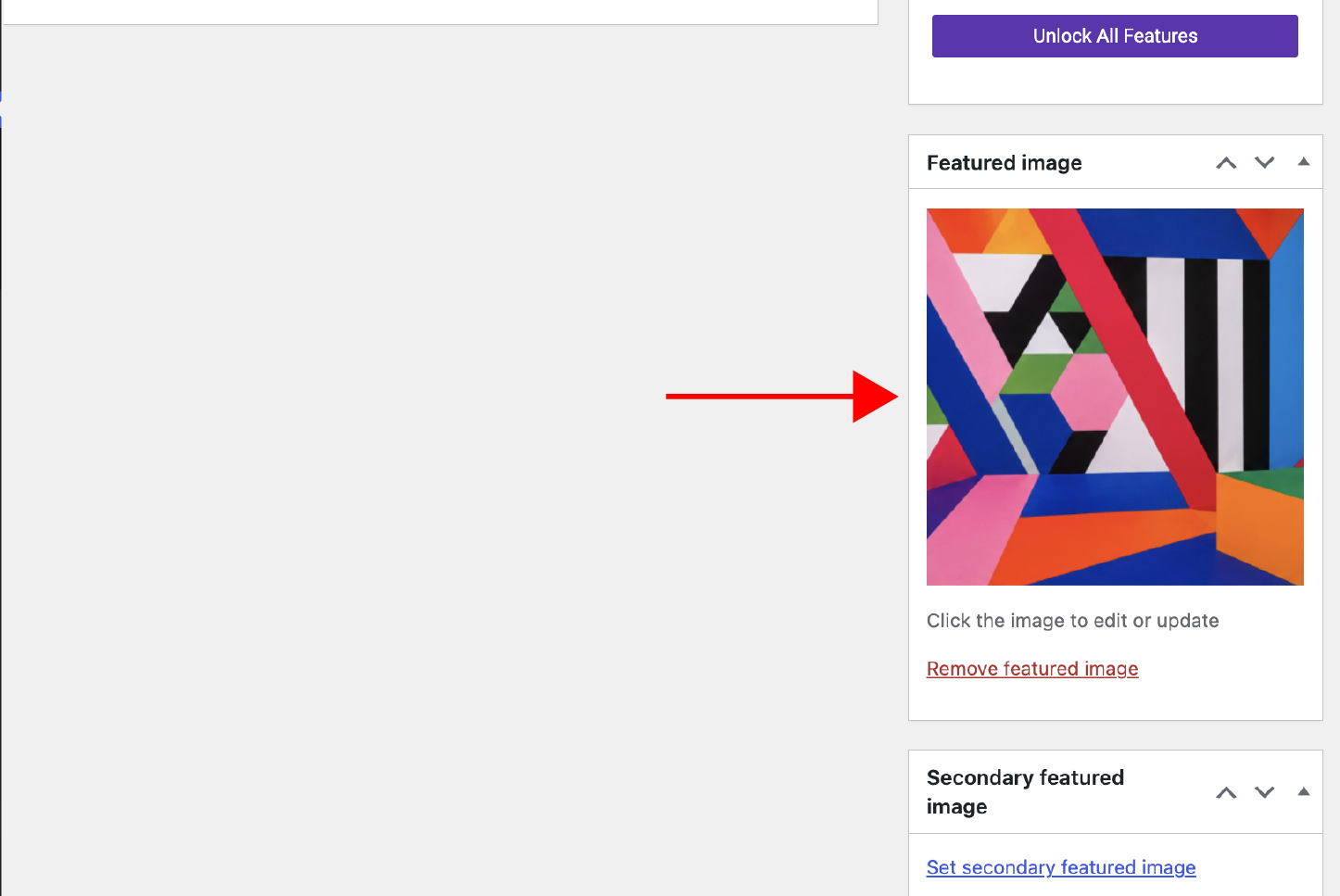
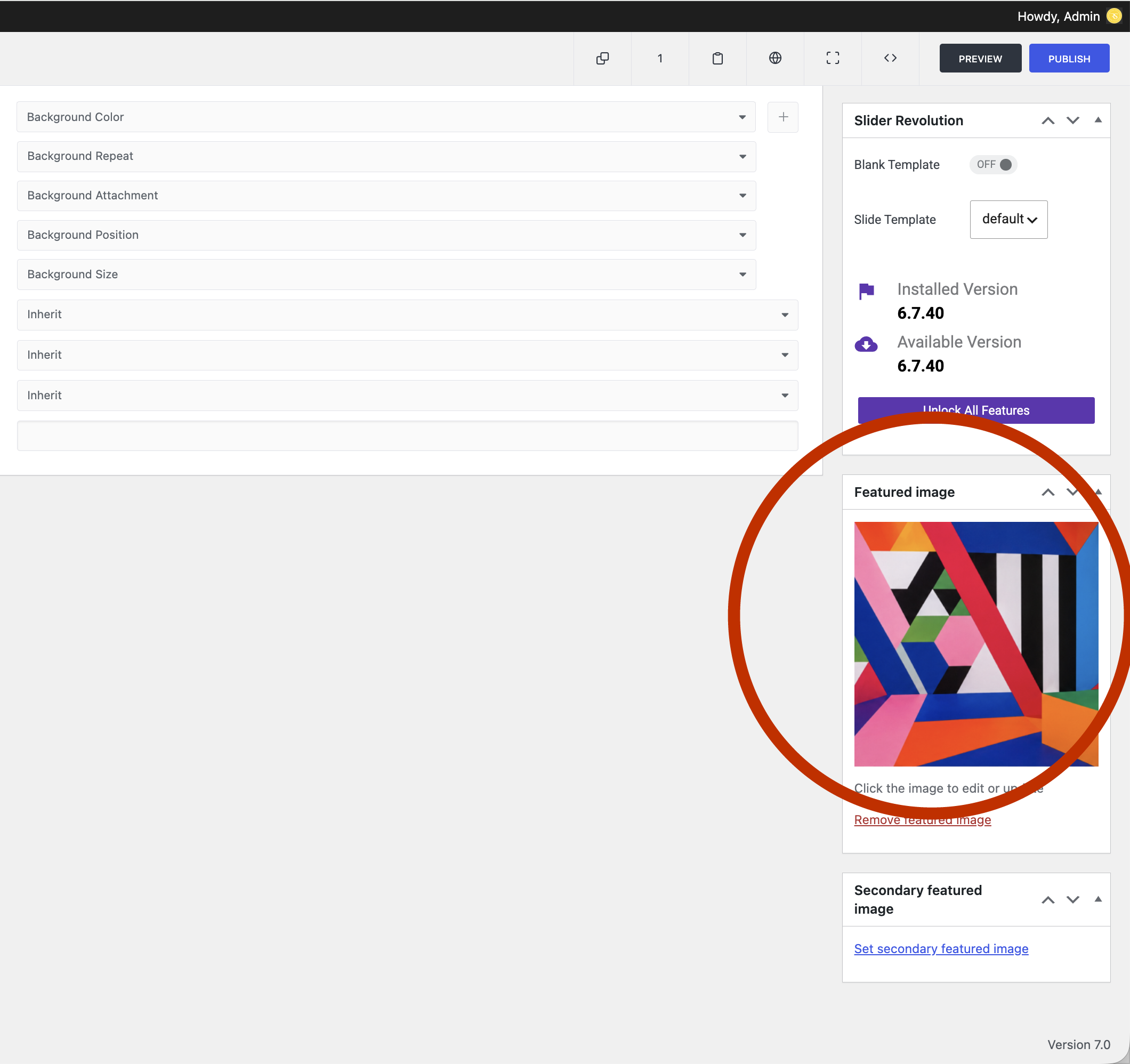
- Scroll down to the bottom of the page to change the header photo displayed on the top of the blog.
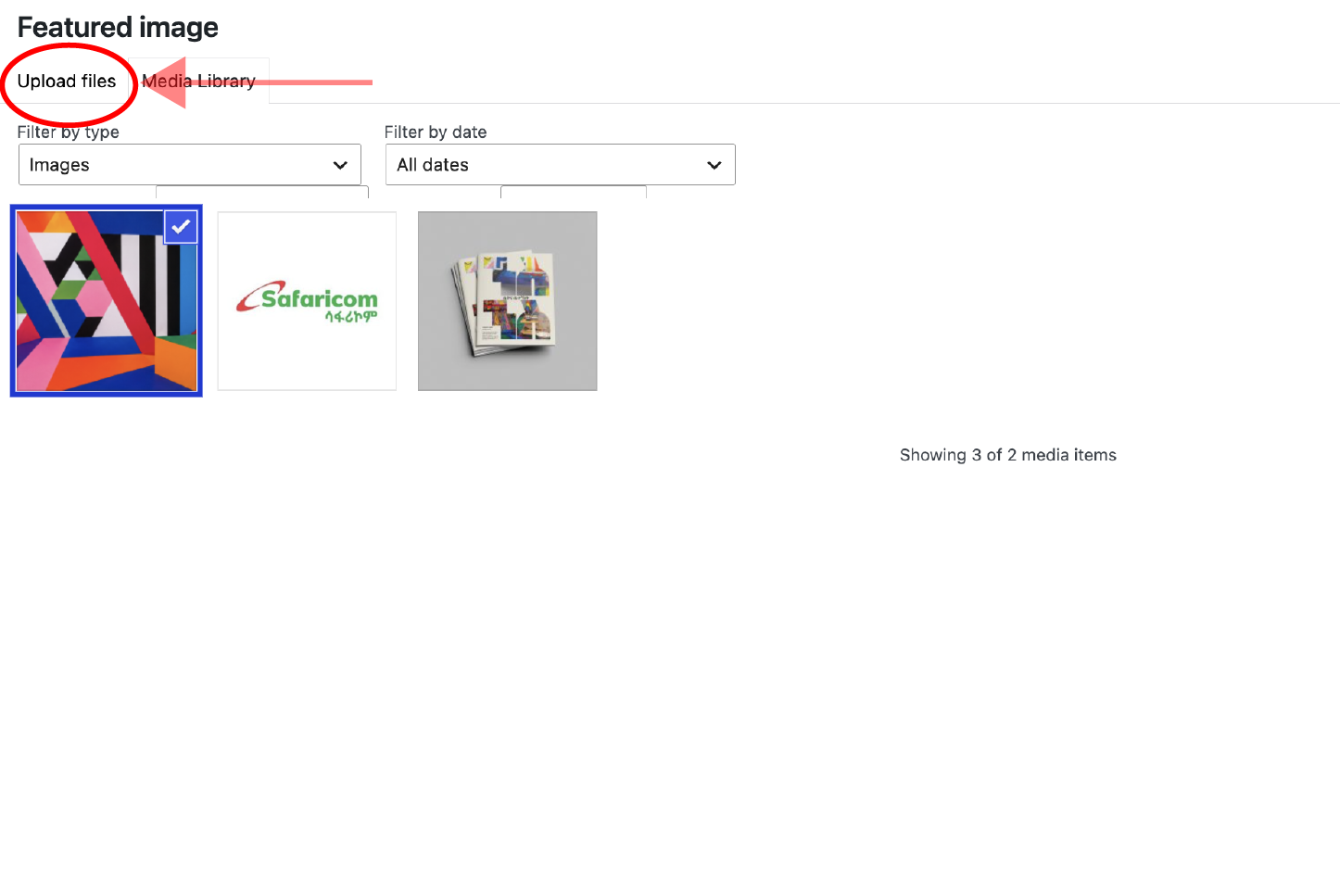
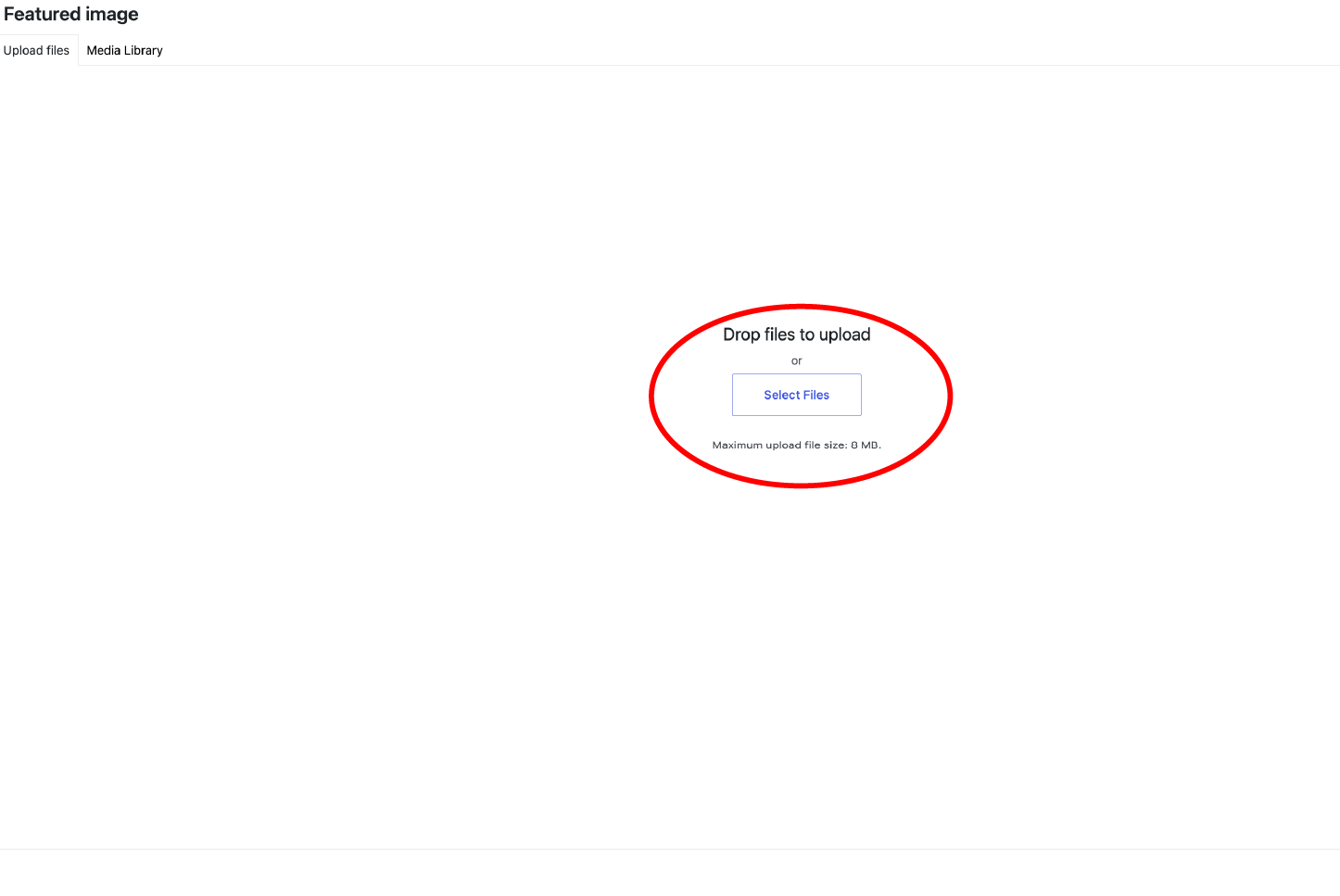
- Click on the Featured image to bring up the file uploader
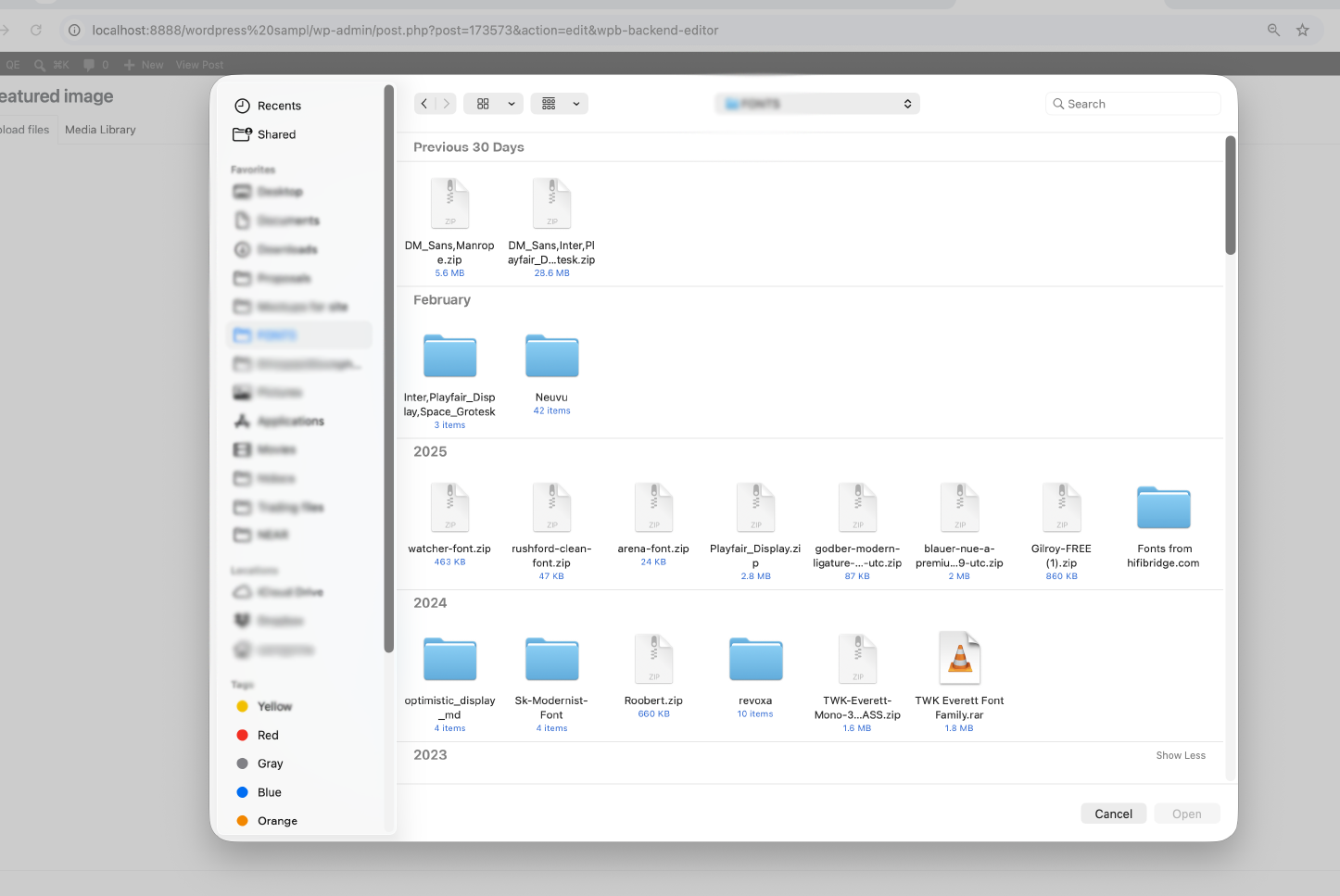
- select an image from the available files or click on upload files and select a file from your computer to upload to the website.
- when you’re done uploading the file , click on the set featured image button to select your header image


Blogs
Amharic version
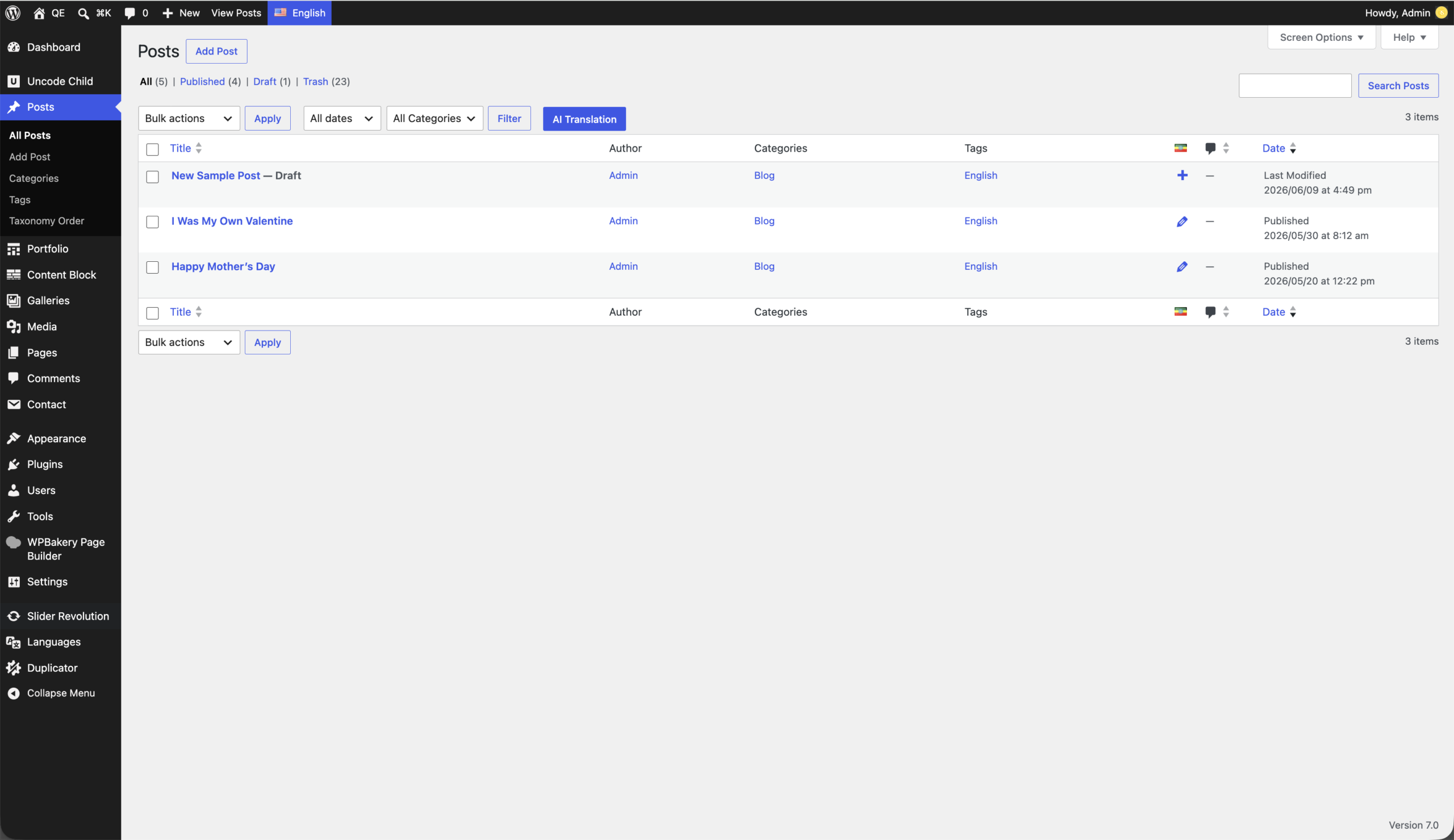
- Go to the posts list by clicking on Posts from the side menu
- from the rows of posts on this page, hover over to the right of a title and click on the Plus sign of the blog you want to translate
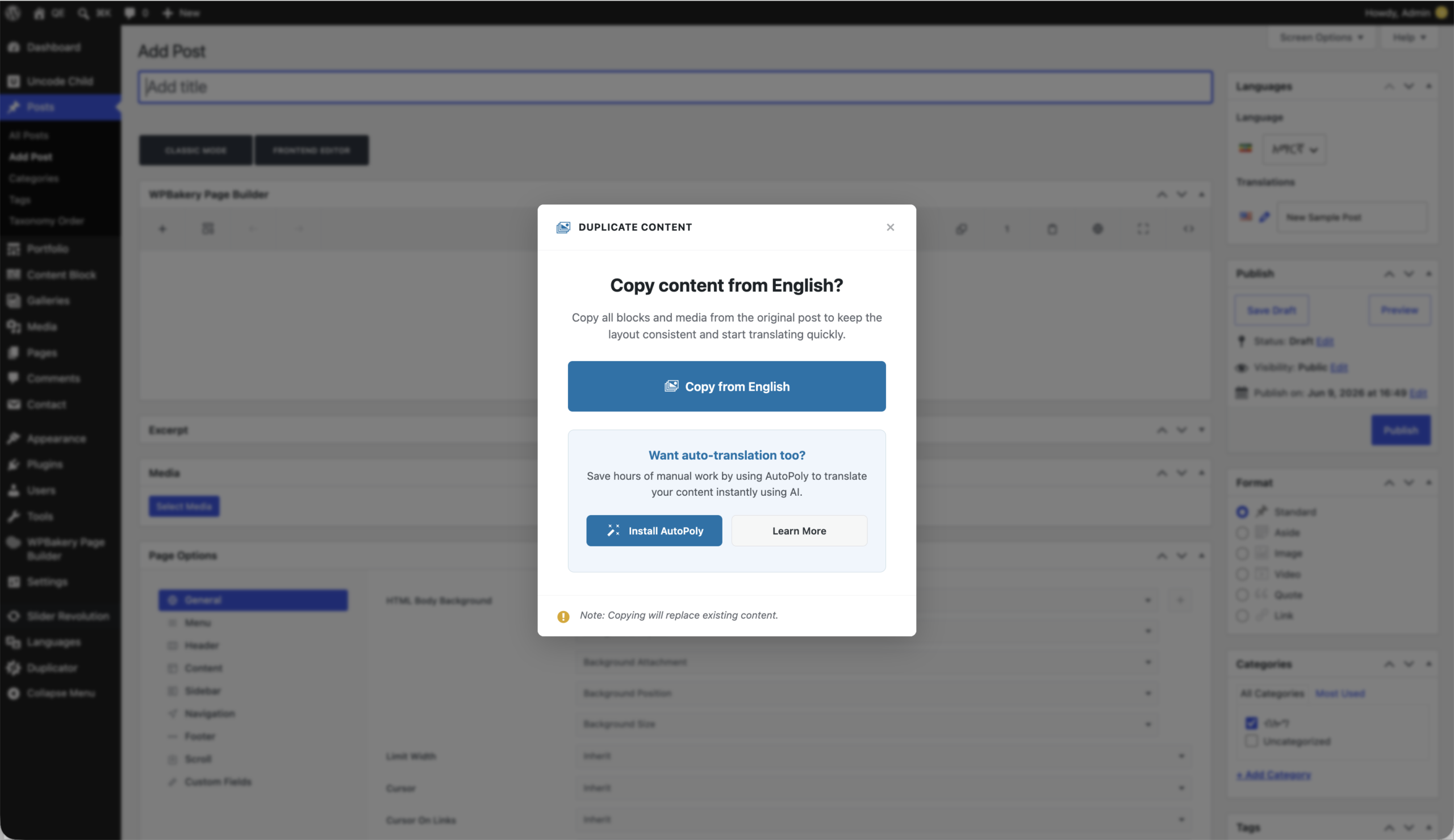
- On the coming window, click on Copy from english
- Now you have a copy of the blog post that you can replace with Amharic content
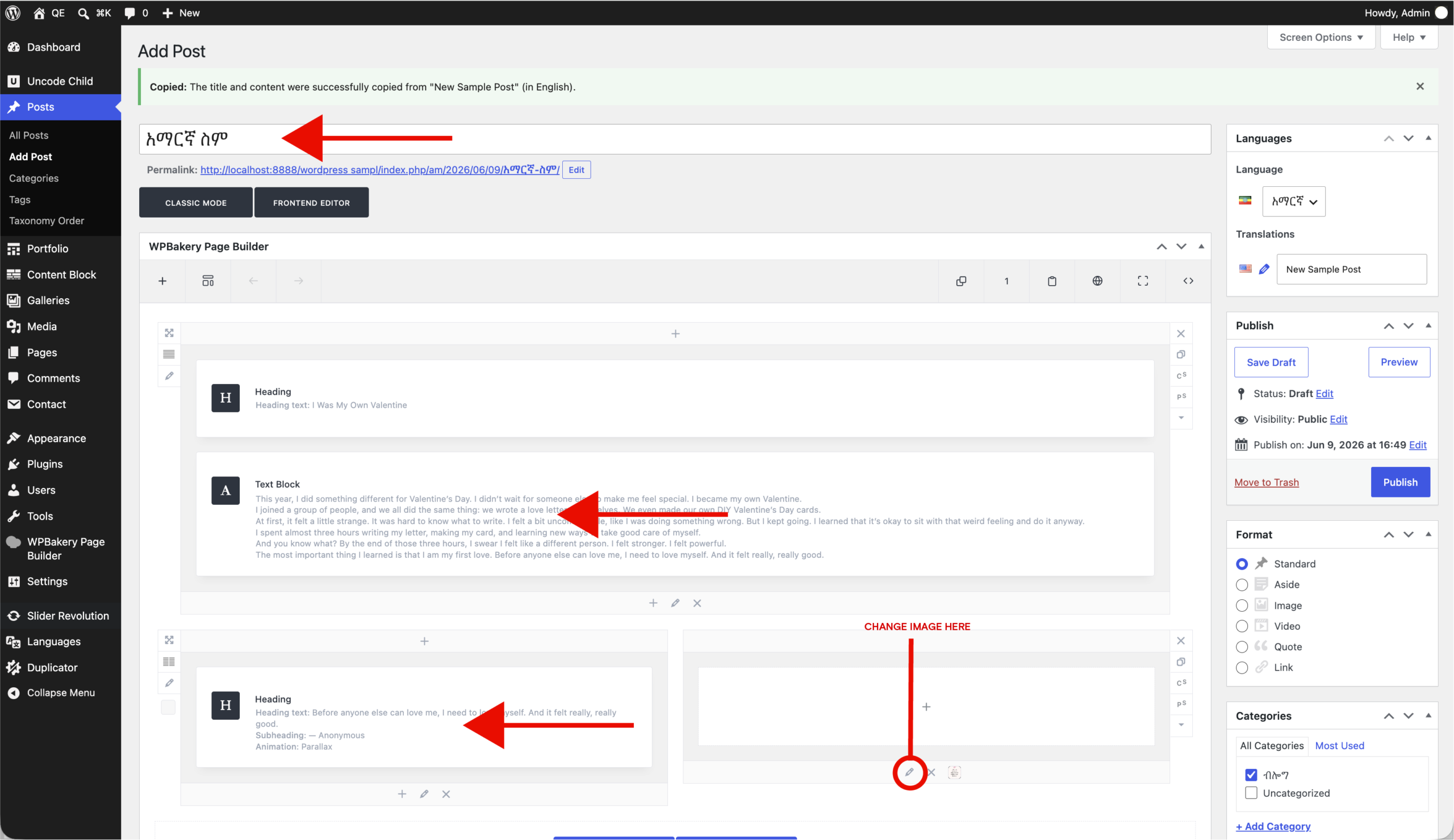
- Click on the title and replace with your Amharic title
- Click on the amharic content on the pages and replace them with your amharic content as well
- No need to change other settings.
- By clicking on the icon as indicated on the slide as “Change image here”, you can change the image in the content too.
- You can also change the Header photo by uploading another image on the featured image section of the page on the bottom right corner.