

Resources
Adding Resources and Nisnis Magazine
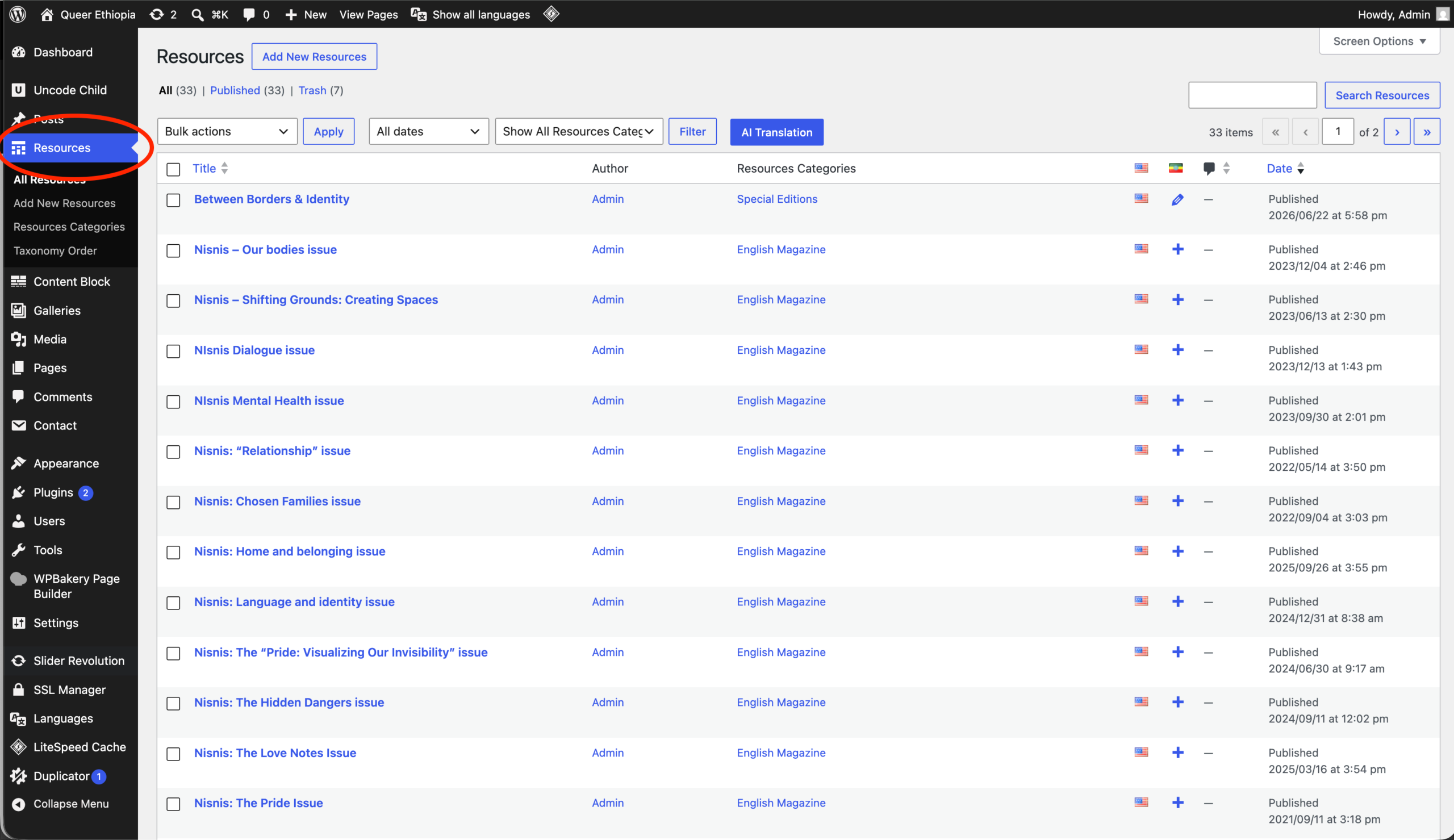
- Go to the Left menu on the dashboard and click on Resources
- Here is where you’ll find your magazine list, you can edit,remove or add a new one from here.
ADDING a new MAgazine/Resource:
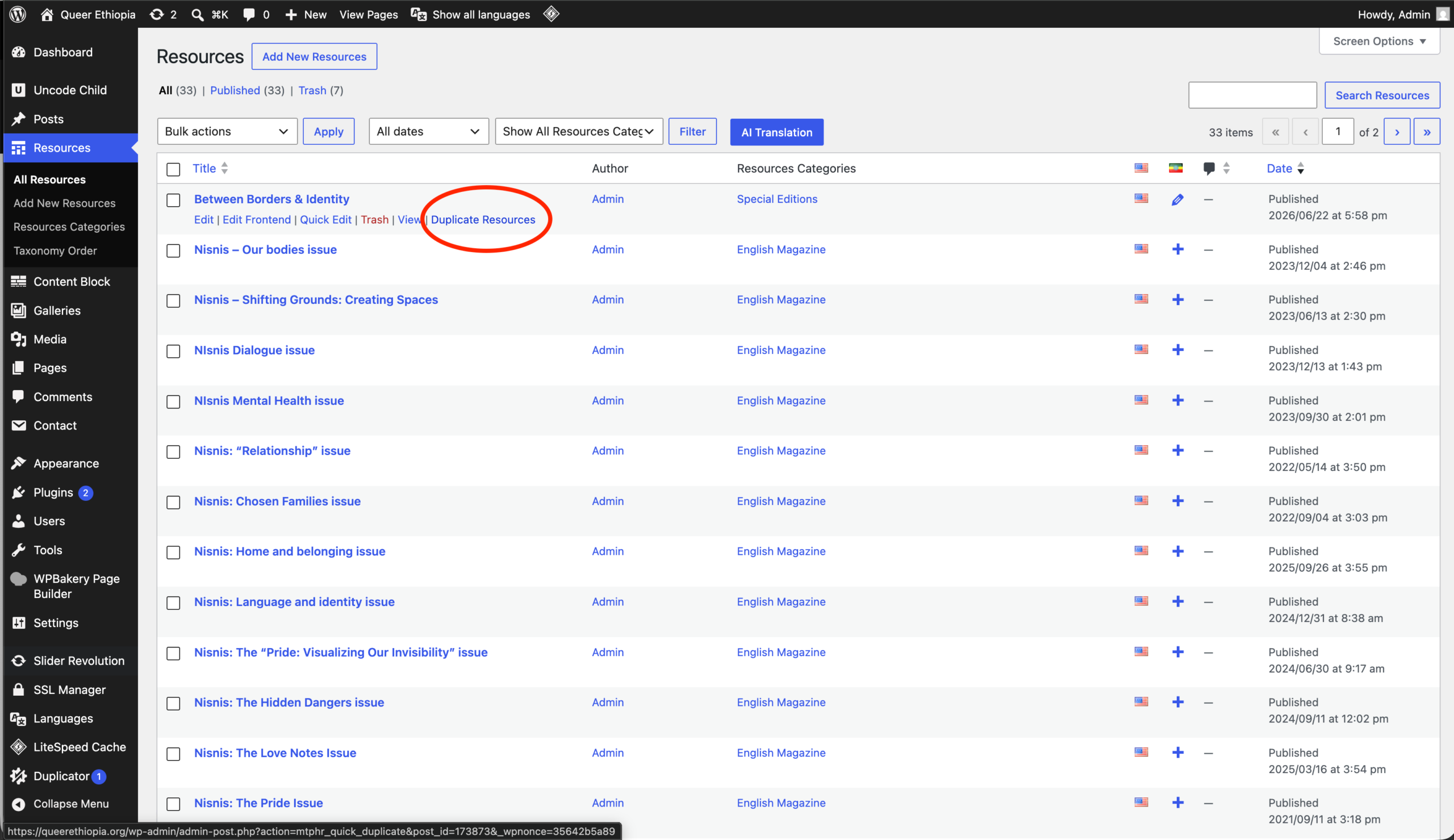
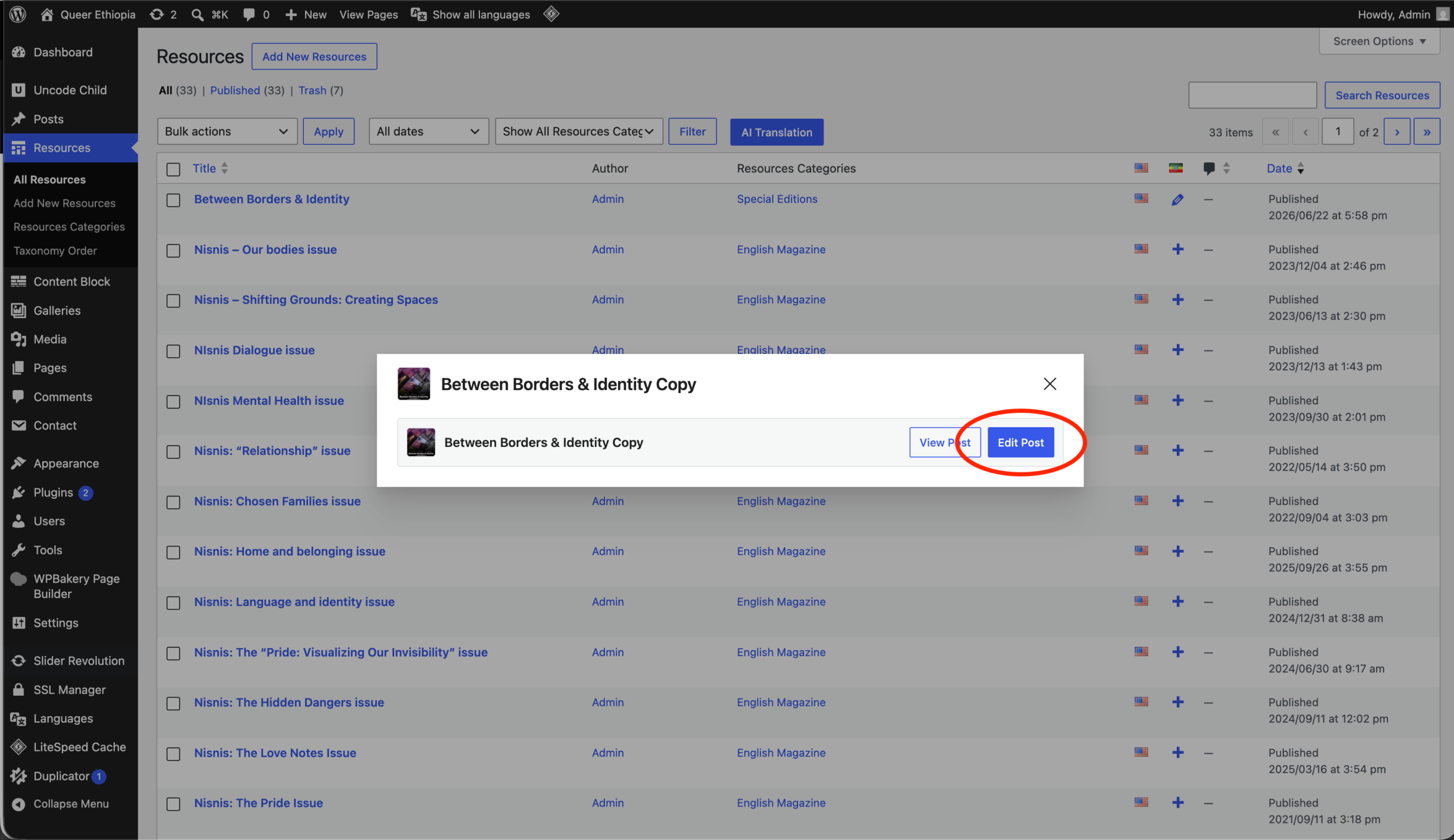
- From the list, Hover on the title of one of the magazine titles and click on duplicate Resource
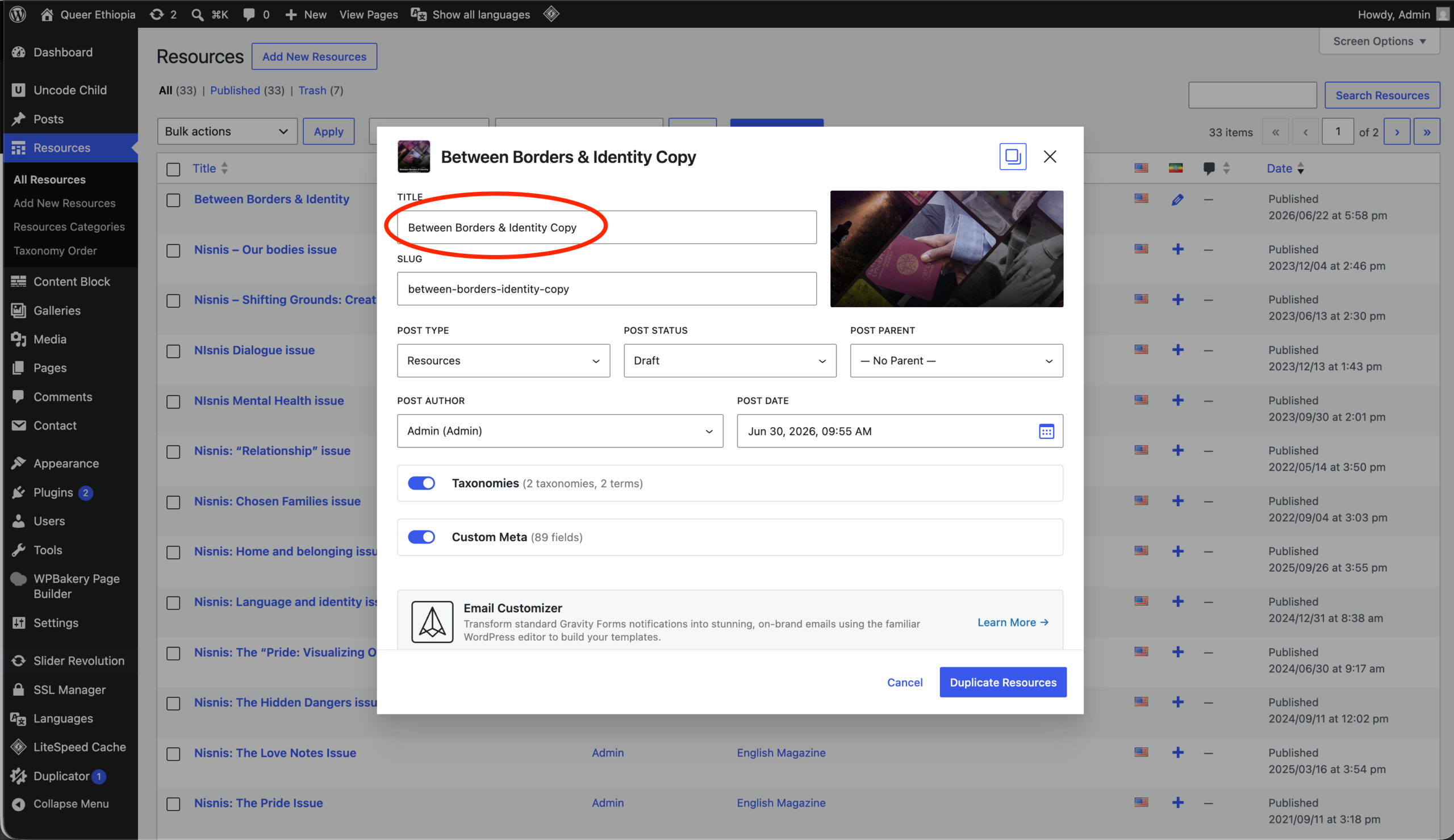
- Change the Title of the Magazine on the top of the panel
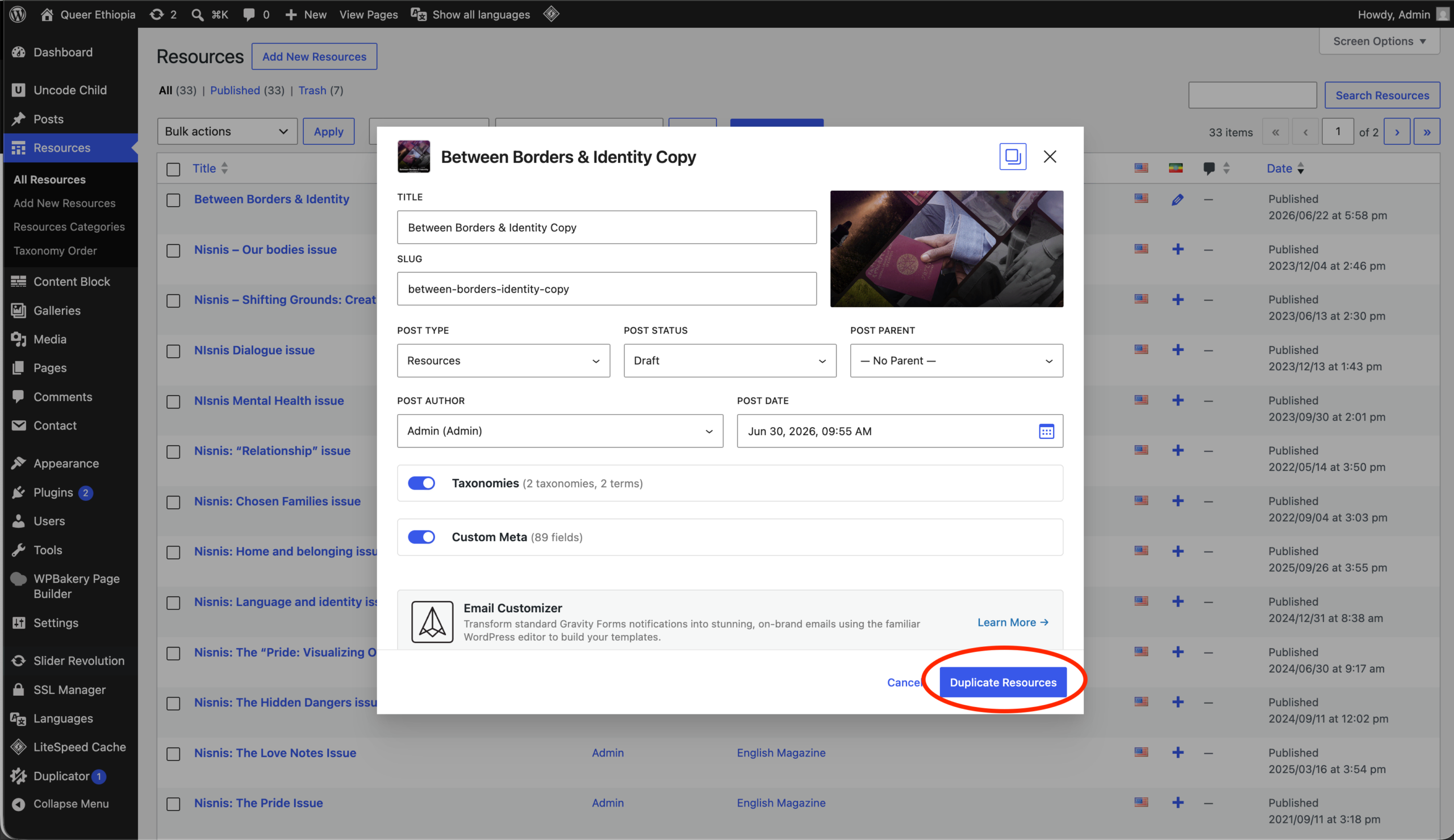
- Next, Click on Duplicate Post
- Then click on Edit post to open it and modify it to your liking..
Resources
Editing Resources/ Nisnis Magazine
- This next step comes after opening a resource in Edit mode.
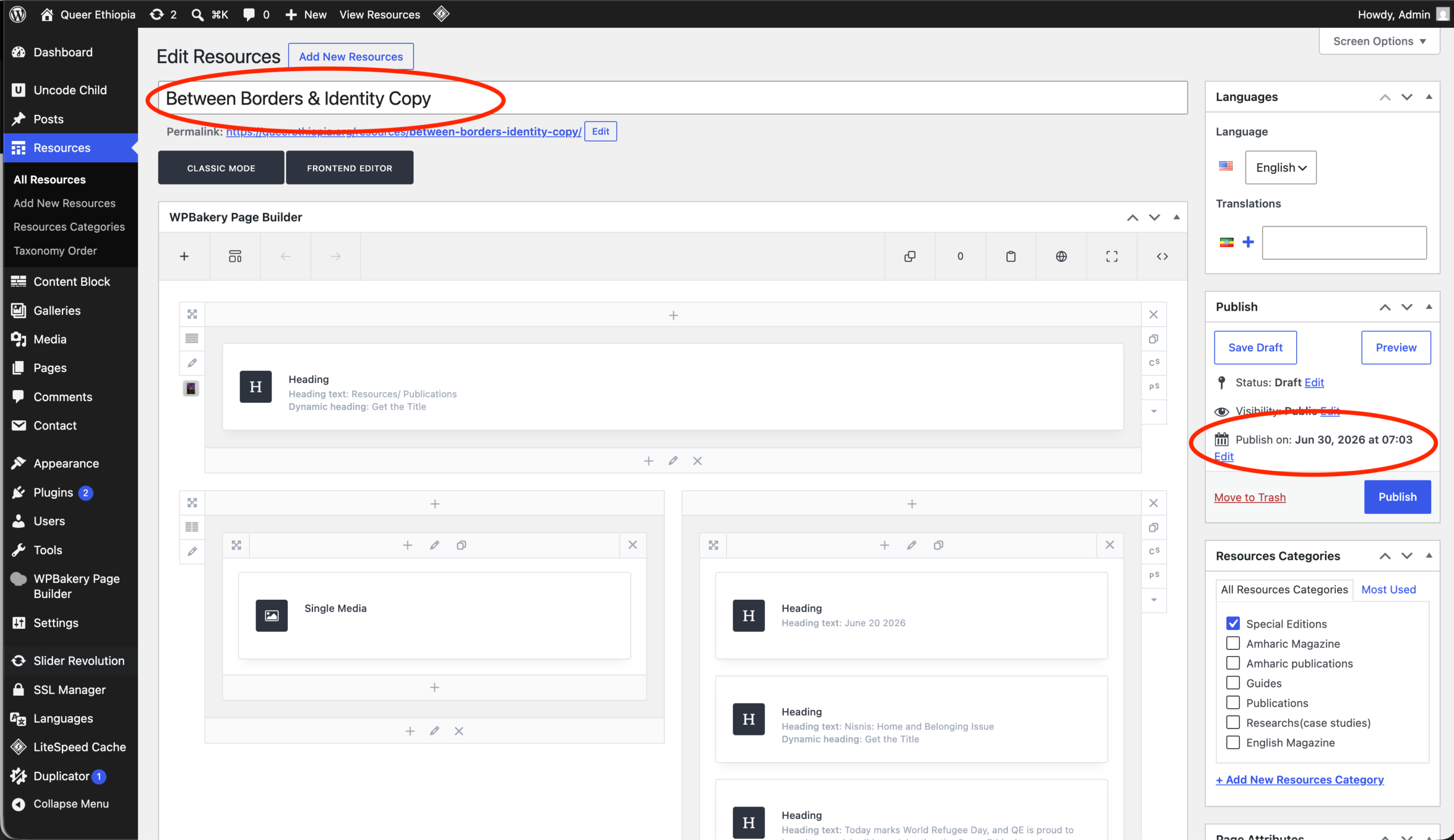
- You can change the title of a resource in the title section.
- You could backdate an article’s publishing date by editing the publish date on the right side of the browser.
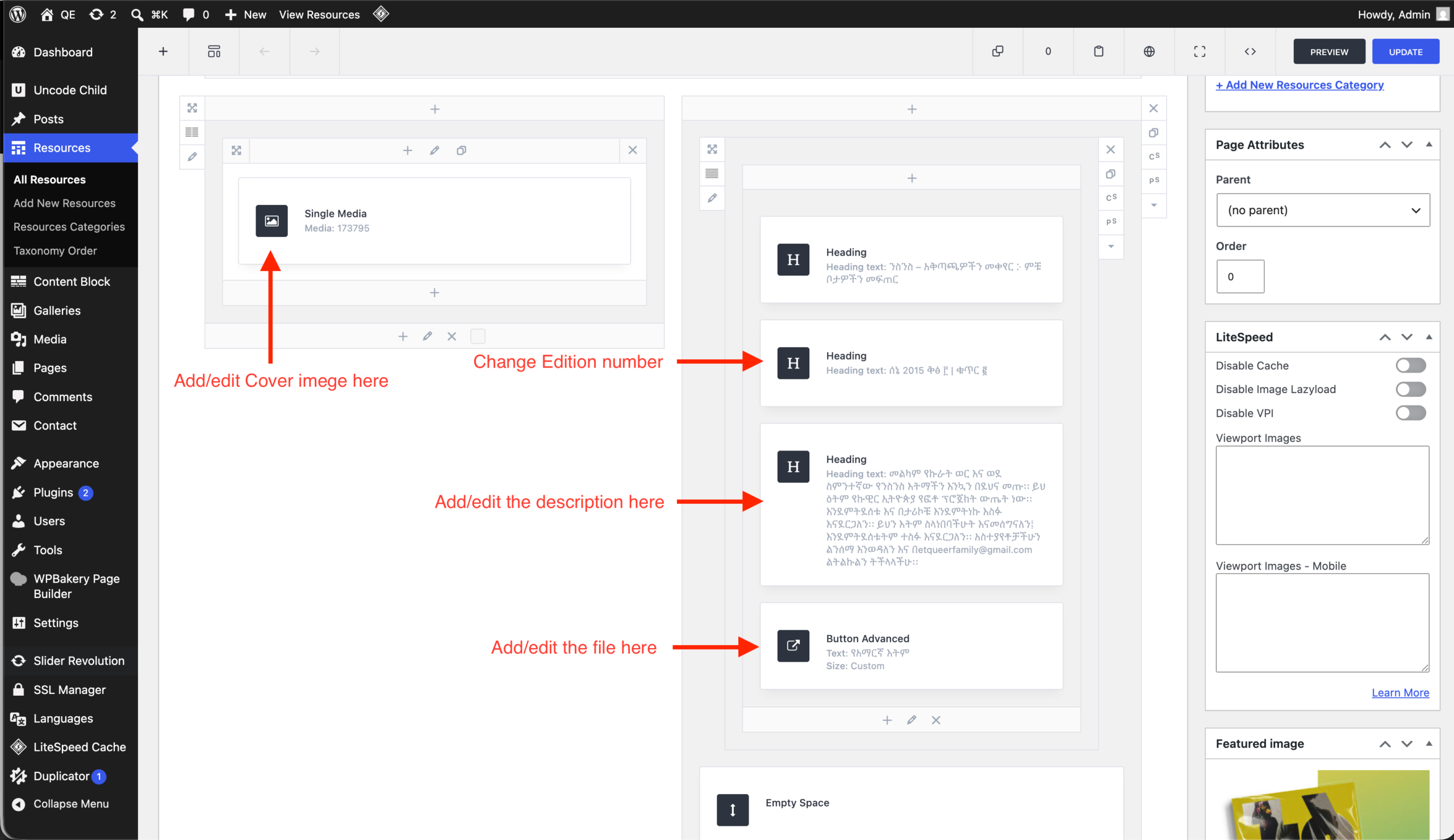
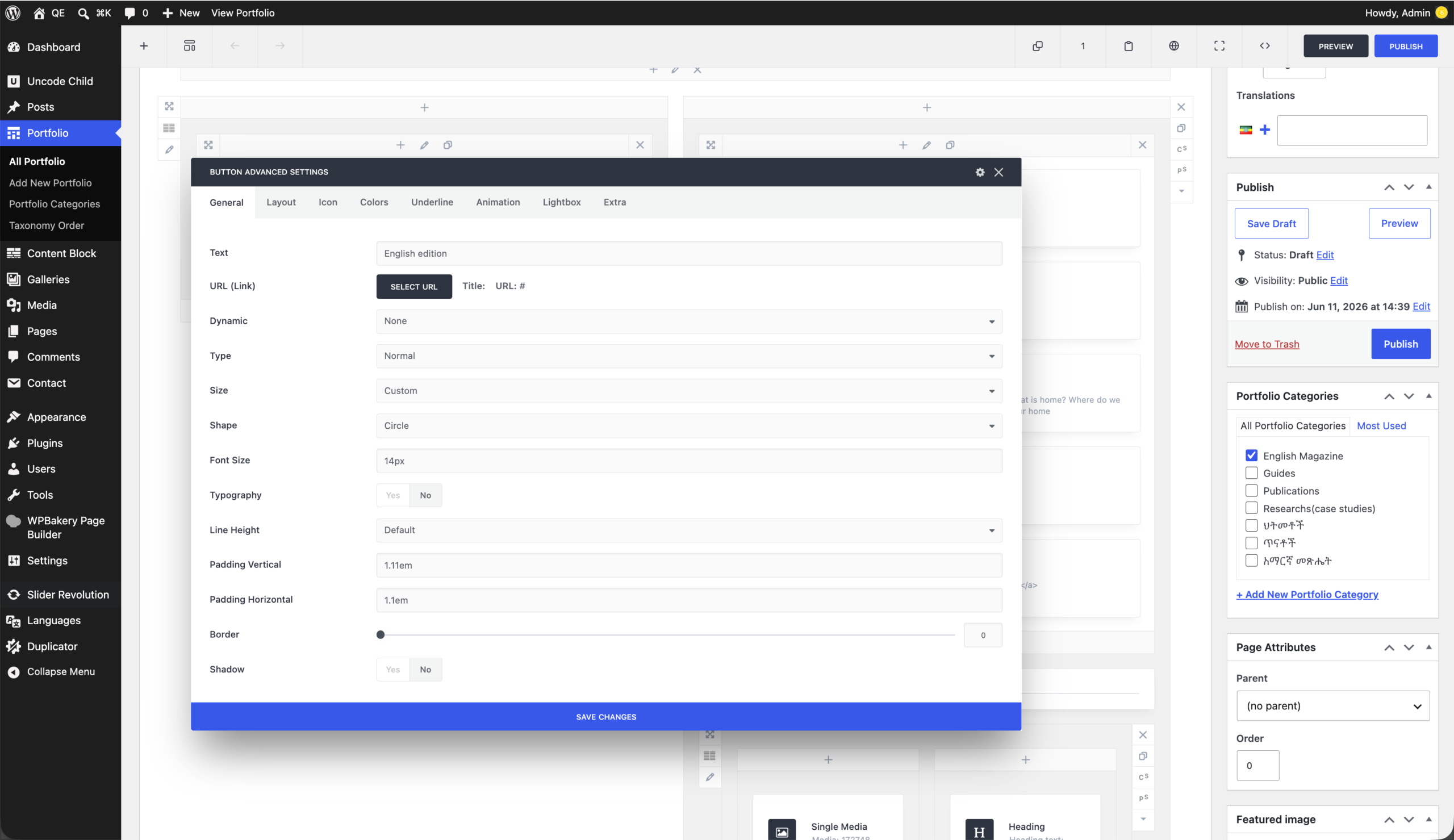
- As shown on slide 2, you can change the cover,Edition number, and the Date as well as the description of the Magazine here
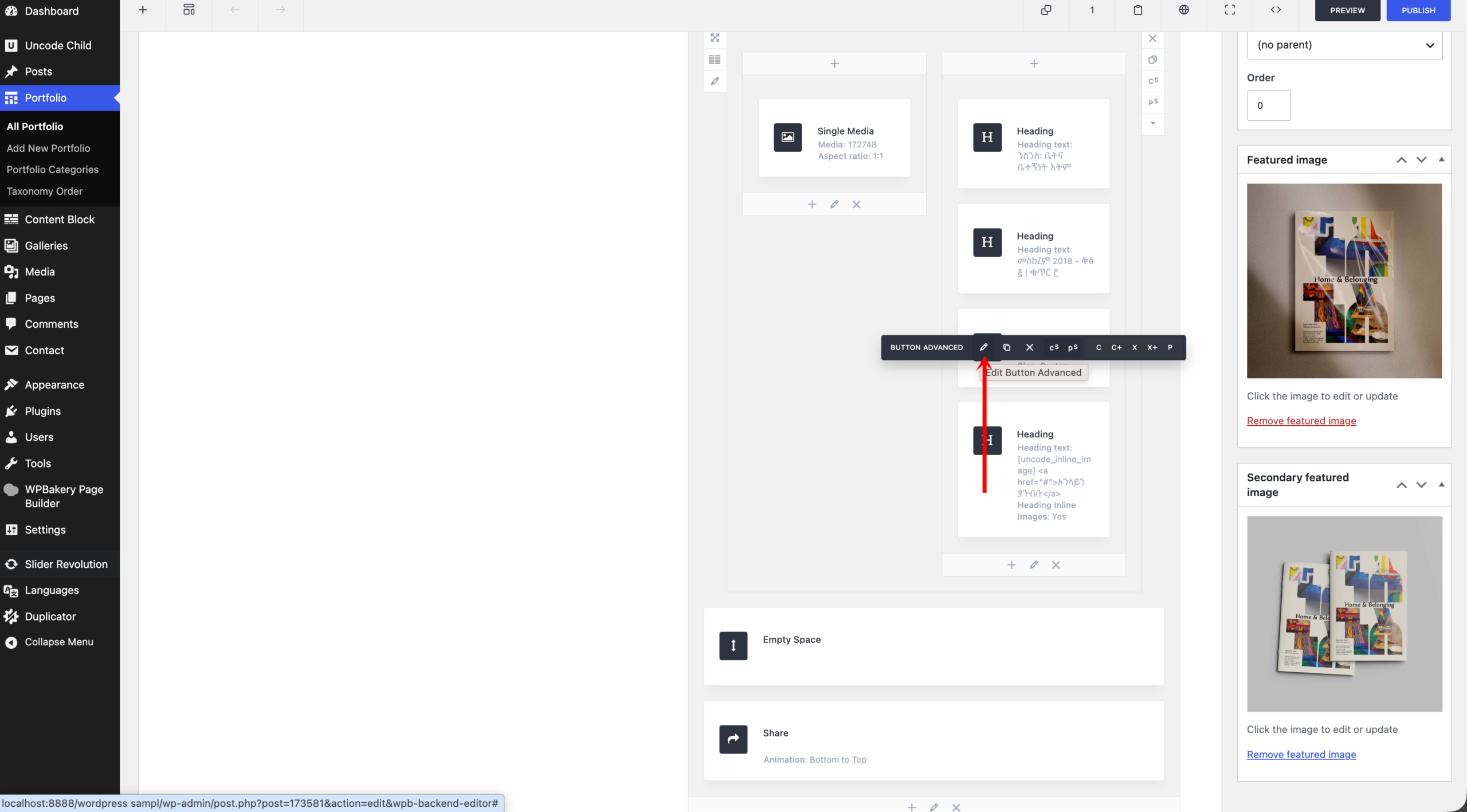
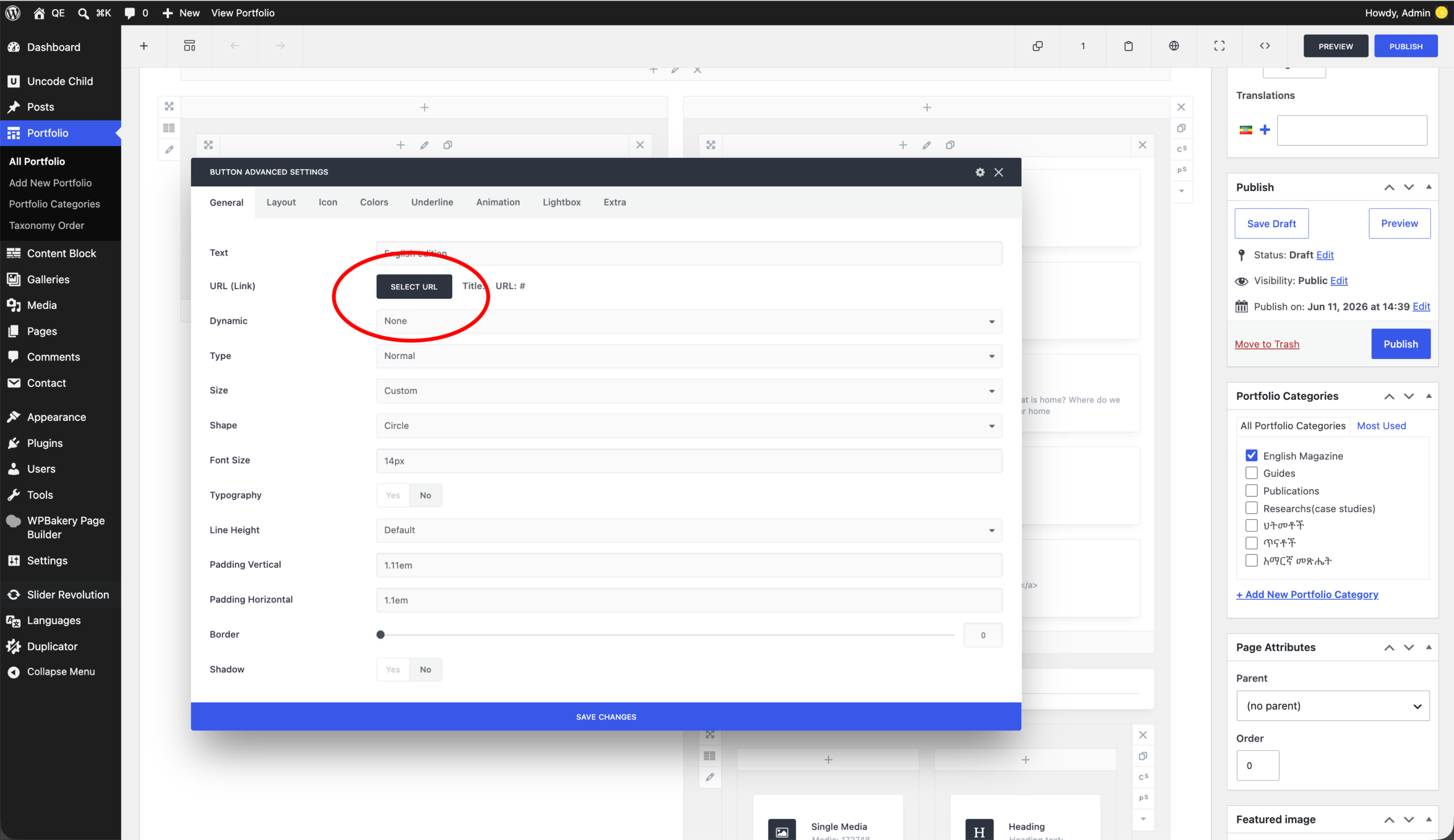
- To change the PDF, click on the Button Advanced – Edit Button Advanced as shown on slide 3
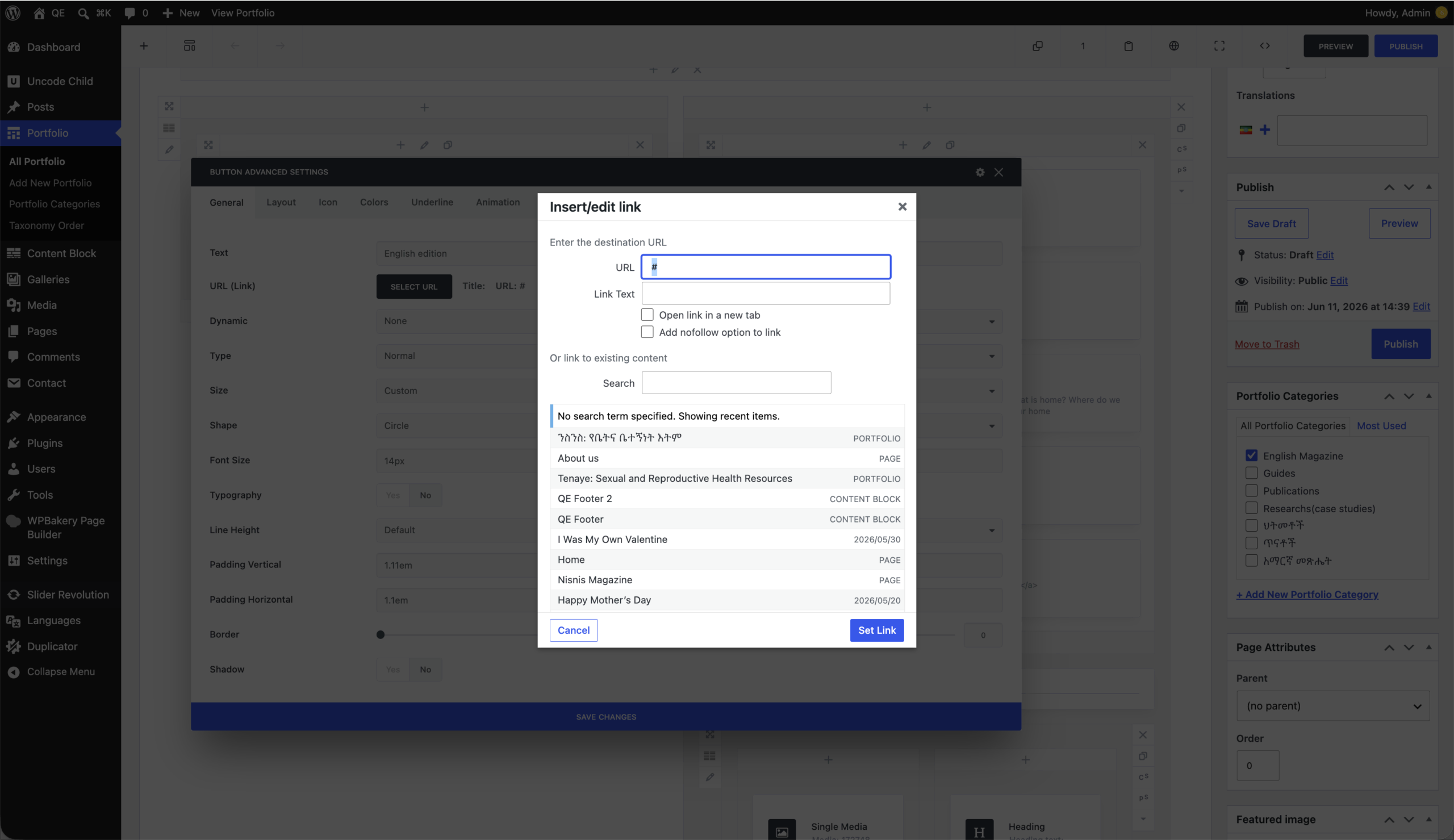
- from the coming dialog, click on Select URL as shown on slide 6
- Paste in the path to the PDF in the text box and click on Set link button.
- Click Save changes and update the article by clicking on update button on the top right of the browser window
[the section below shows how to upload the pdf to the server] - (Updating the Amharic version of the PDF also follows the above process.)
Uploading
Uploading a file to your server
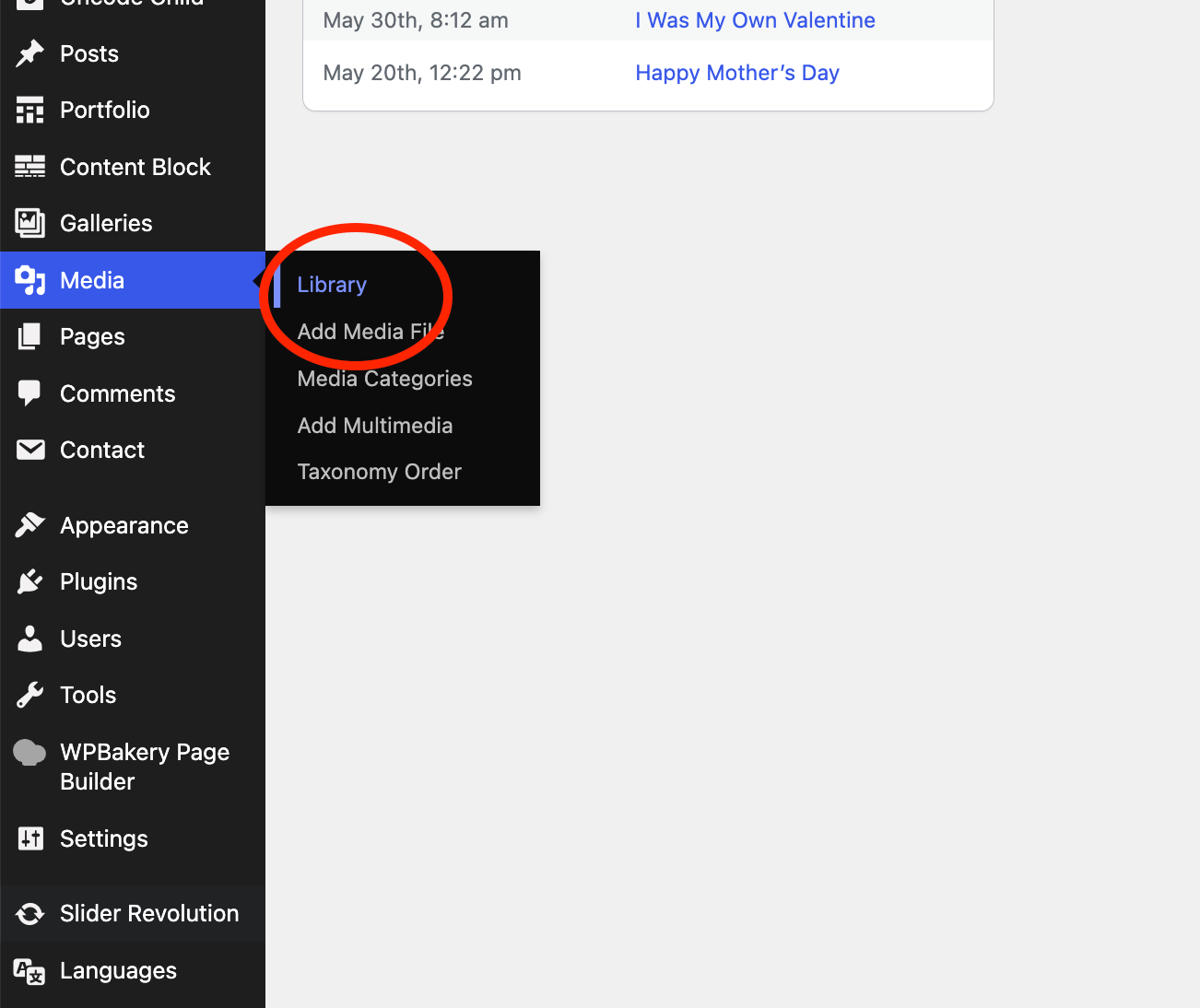
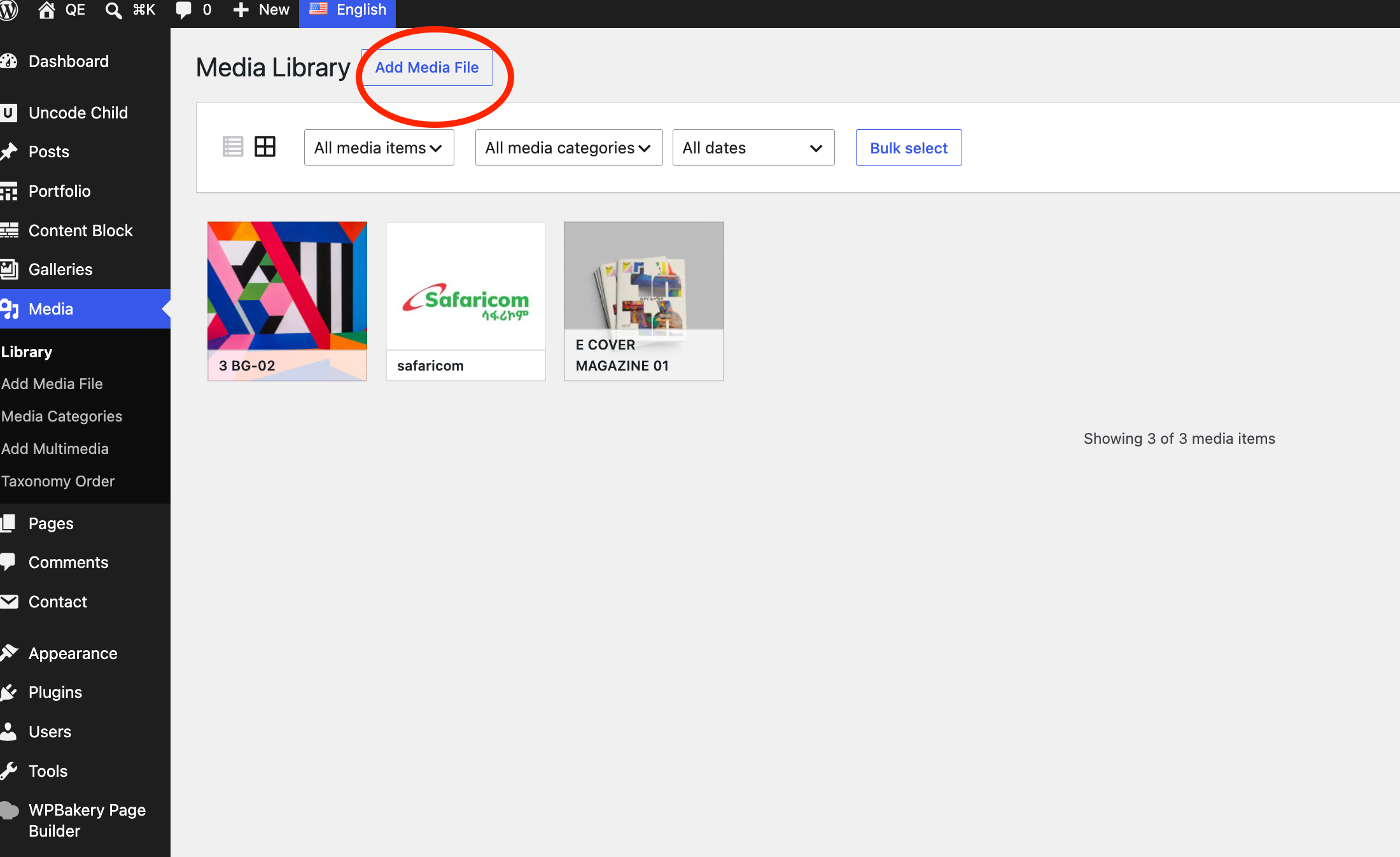
- From the side menu, goto Media – Library from the left side menu
- Here, you’ll find previously uploaded files to the website
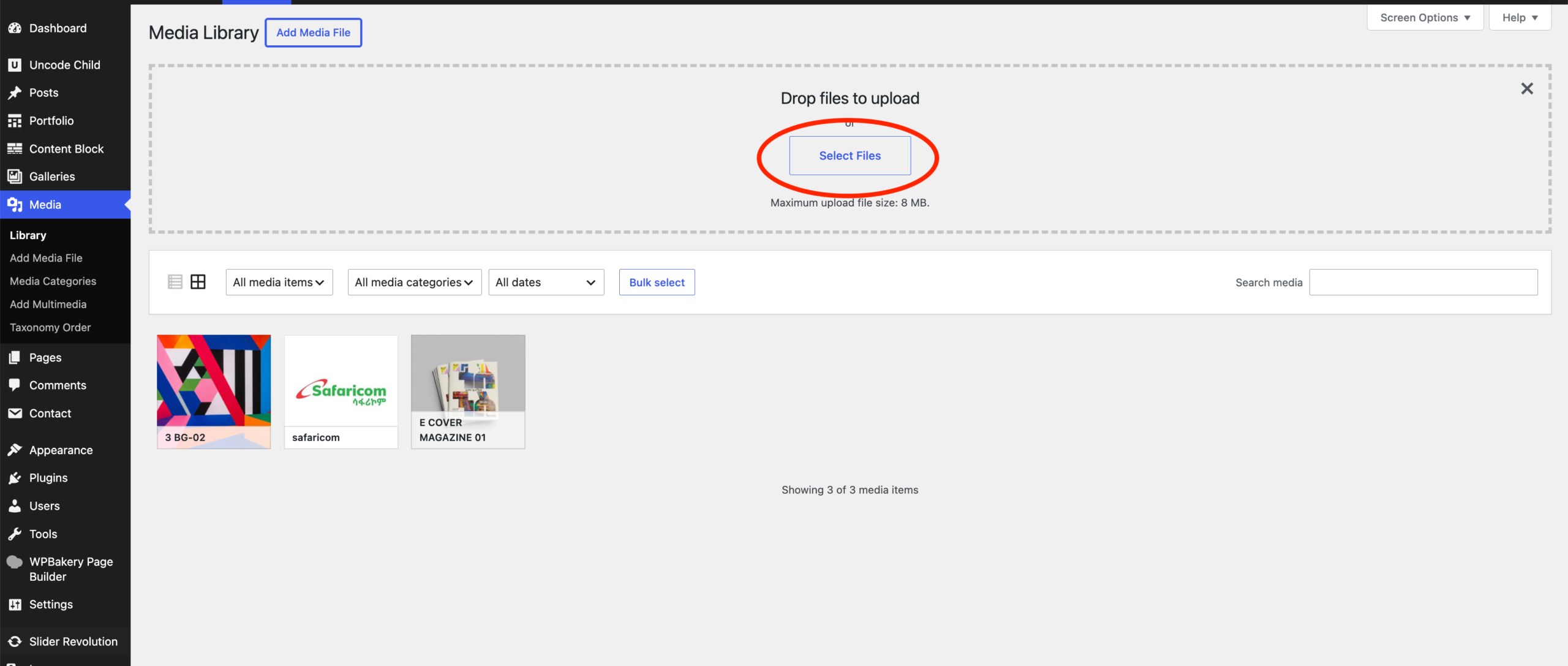
- To upload a new media (it can be an image,PDF or video file) Click on Add media File
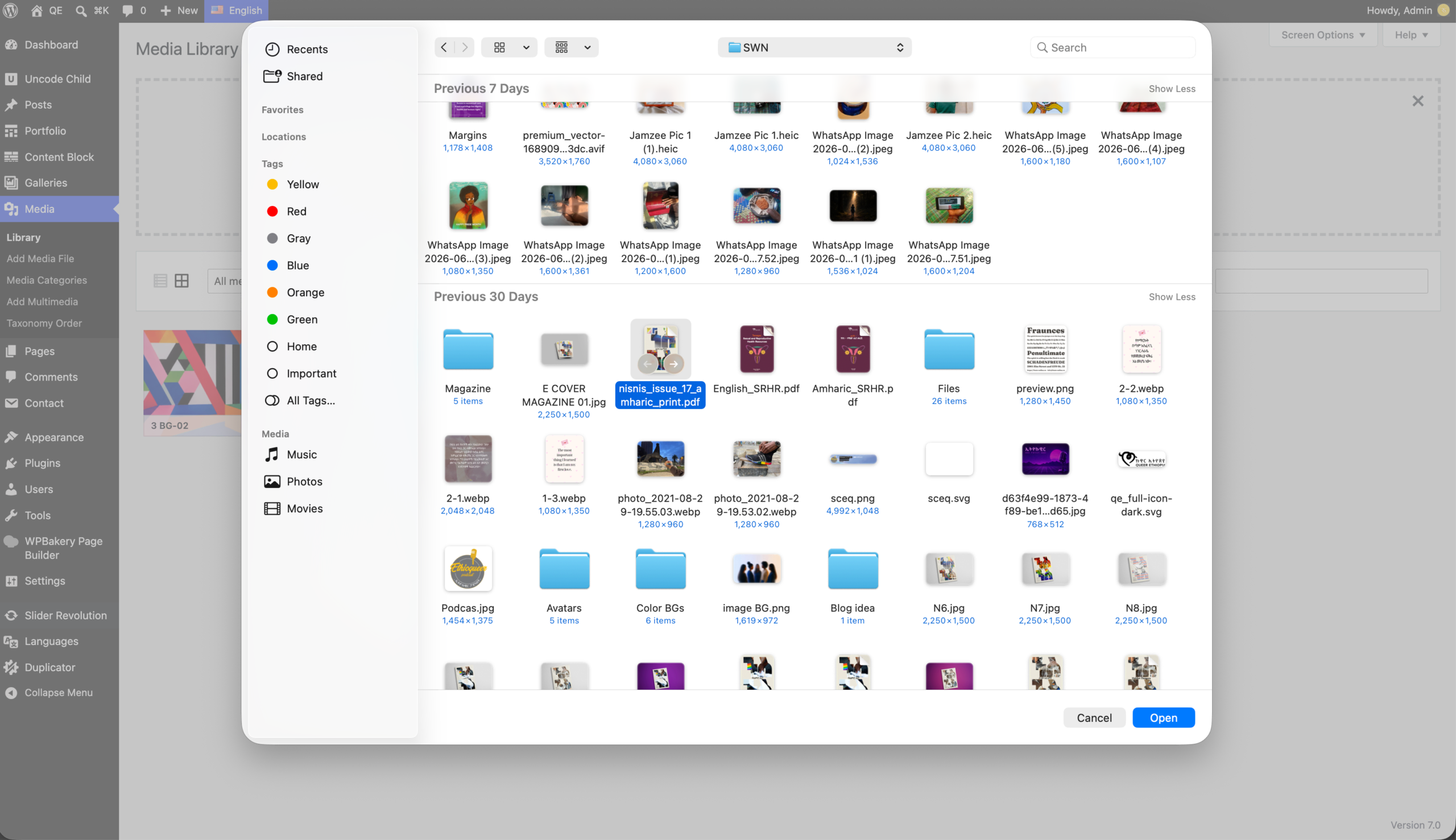
- Click on Select file
- Browse your computer and locate the PDF file(s) you want to upload
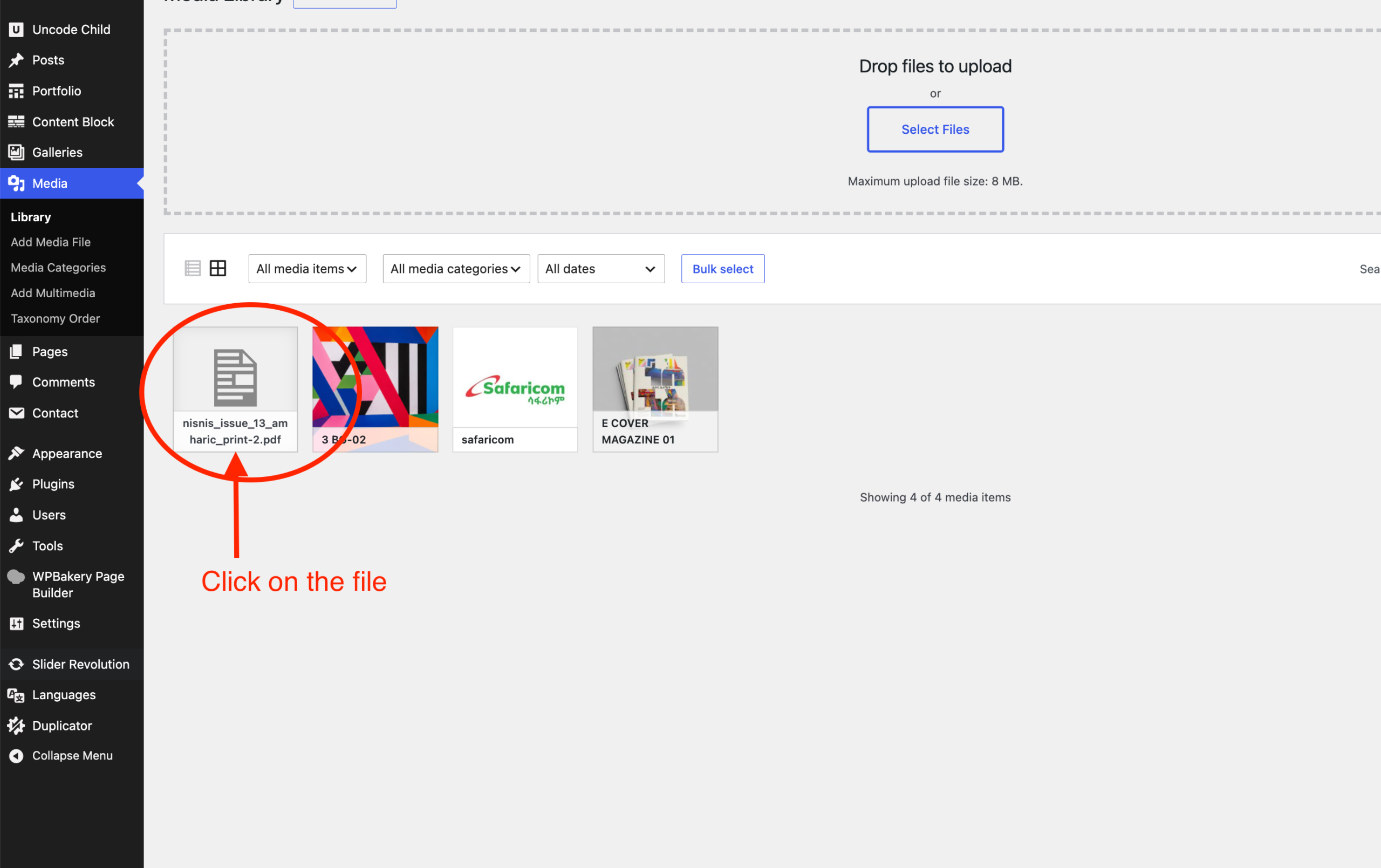
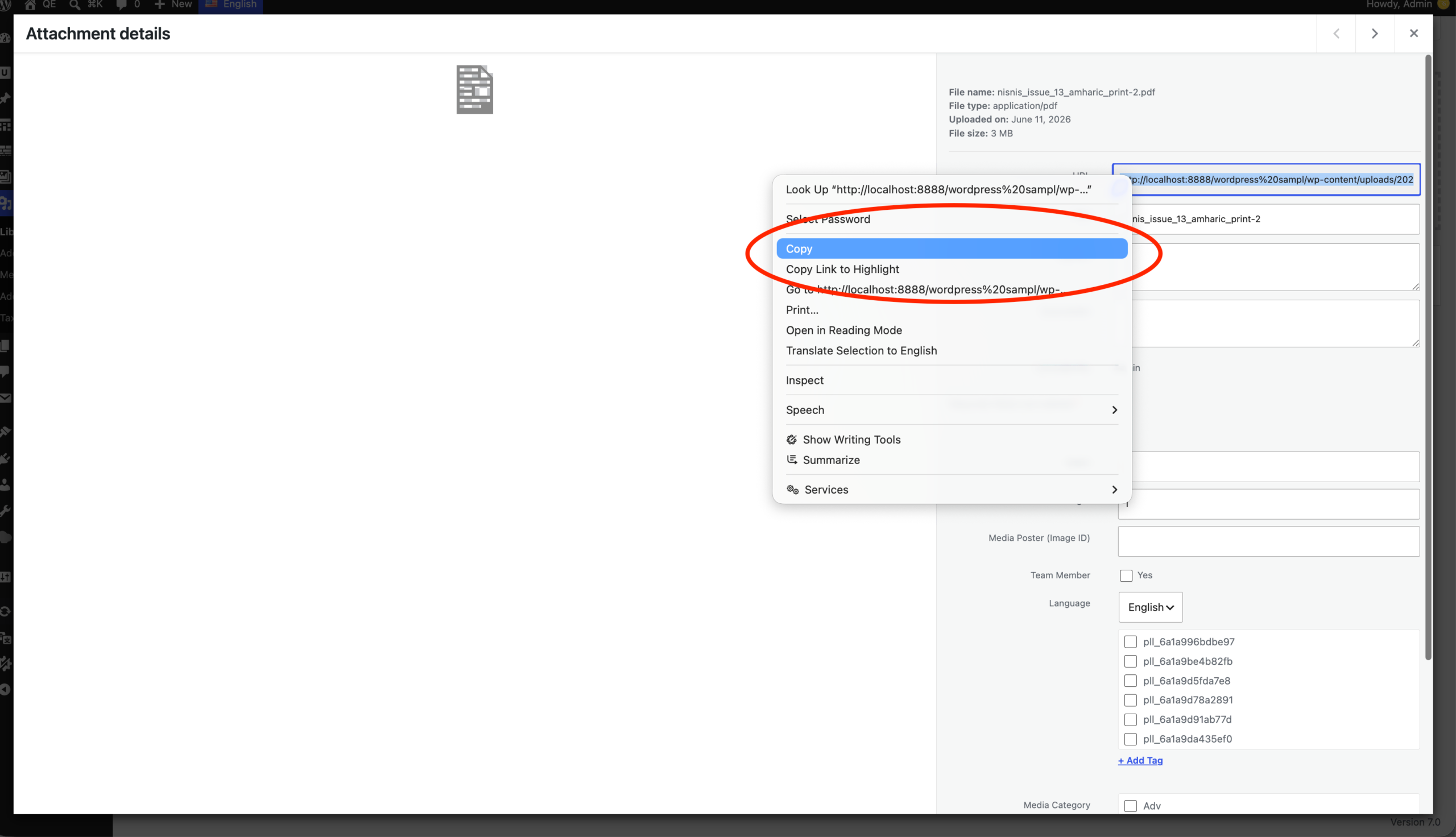
- When you are done uploading the file, click on it to bring up its details
- Double click on the url on the file details and select + copy the location of the file to your clip board